 Screenshot.Rocks
Screenshot mockup generator
Drop in a screenshot and get a finished mockup: a browser window or an iPhone, a background, a soft shadow, and an image at the size you need. The device frame is an iPhone; there are no Android, iPad or laptop frames.
What you can make
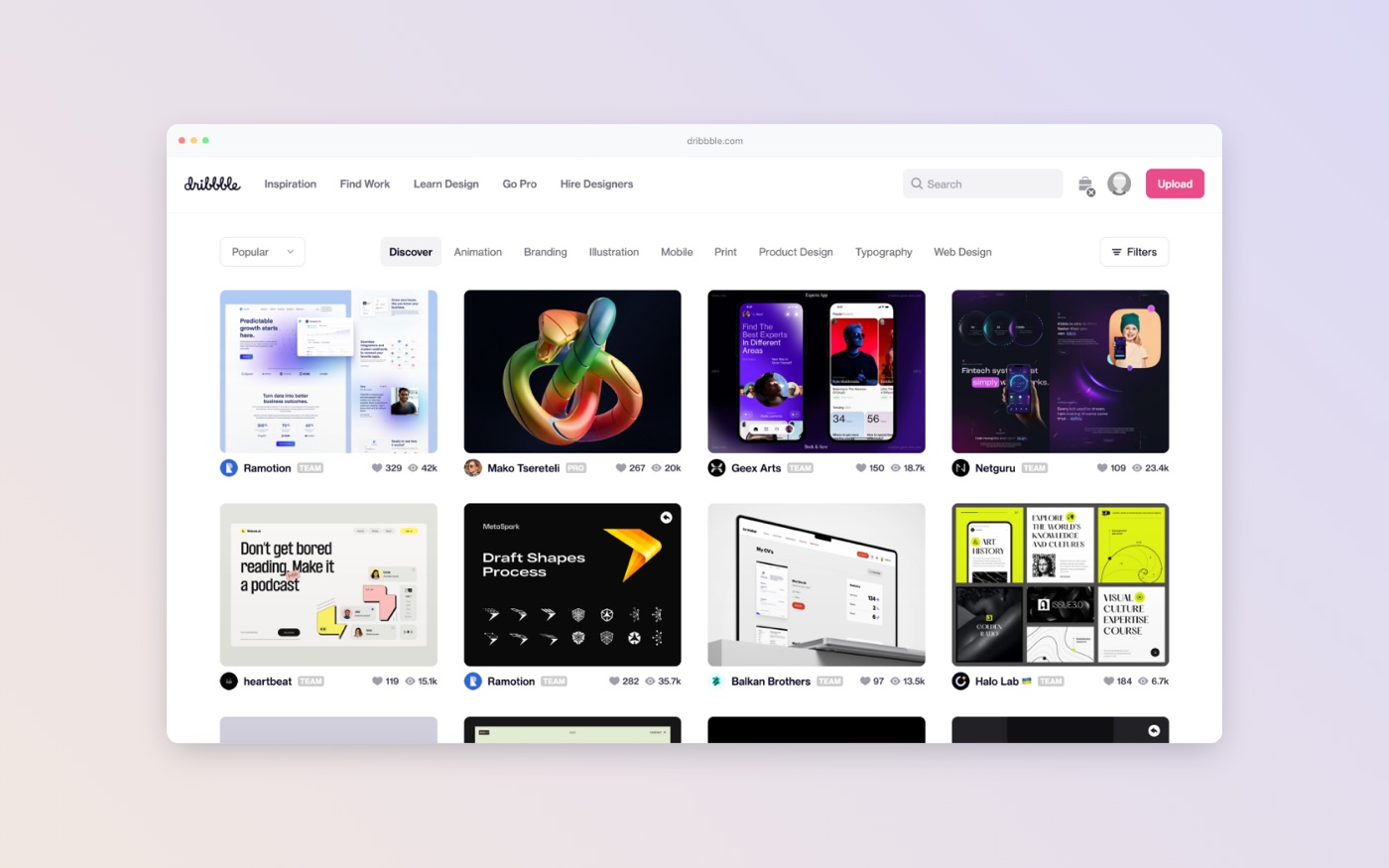
Browser window
Six styles (Light, Dark, Black, Soft, Square, Plum) or your own colors. Type any address into the address bar, or hide it.
iPhone
Five finishes, the Dynamic Island on or off, and a choice of which part of a tall screenshot shows on the screen.
Just the image
No device at all: rounded corners, a shadow and an optional hairline outline, for components and cropped details.
How it works
- Add your screenshot. Drop it on the editor, choose a file, or paste it with ⌘+V (Ctrl+V on Windows). You can also capture a website from its URL.
- Pick a frame. Landscape screenshots go into a browser window and portrait ones into an iPhone automatically. Switch any time.
- Choose a background. A solid color, a gradient, one of the background images or your own, or nothing at all for a transparent PNG.
- Set the canvas. One click for 16:9, 4:3, 1:1, 4:5 or 9:16, or type an exact width and height up to 2300 px. Drag the screenshot to move it, drag a corner to resize it, and tilt it if you like.
- Export. Download a PNG, JPEG, WebP or SVG, or copy the image straight to your clipboard.
Export formats
| Format | Best for | Transparent background |
|---|---|---|
| PNG | Docs, slides and anything with small text. Lossless, so text stays sharp. | Yes |
| JPEG | Small files, for social posts and email. | No (white) |
| WebP | Websites. Smaller than PNG at similar quality. | Yes |
| SVG | Places that require an SVG file. It contains the finished image, so it won’t get sharper when scaled up. | Yes |
The exported image is exactly the canvas size you set, so a 1600 × 900 canvas gives you a 1600 × 900 file. See screenshot sizes for each platform for which size to pick.
Add notes, arrows and blur
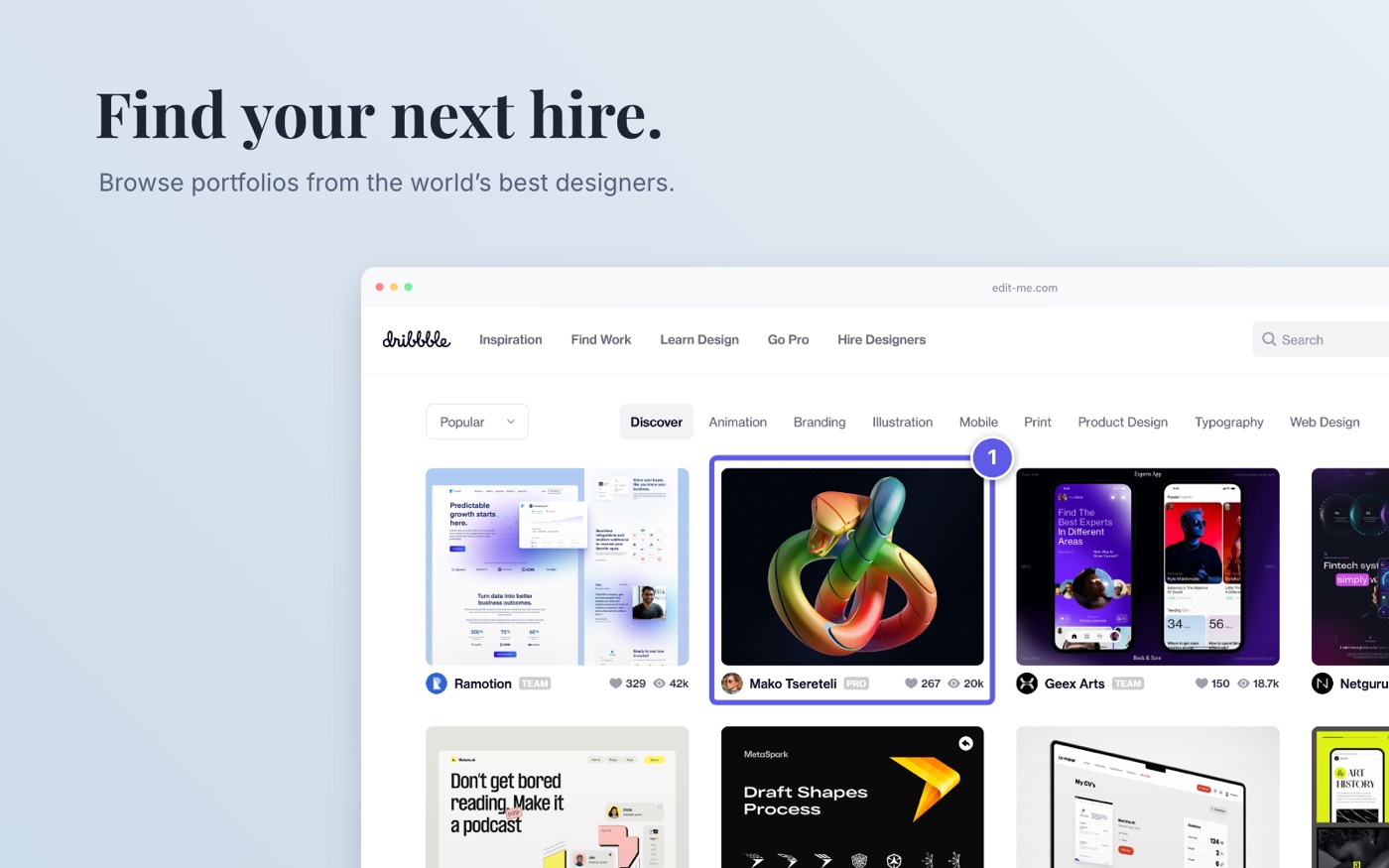
Turn on Markup to draw boxes, ellipses and arrows, add numbered steps, write text in one of ten fonts, or blur anything private. Markup is part of the exported image.
Where your images go
Screenshots you add are processed in your browser and are not uploaded or stored. Two features do use the server: capturing a website sends the URL to be rendered, and the browser extension passes the captured tab to the editor. Neither keeps a copy. The code is open source if you want to check.
Frequently asked questions
Is the screenshot mockup generator free?
Yes. There is no account, no watermark and no limit on exports.
Are my screenshots uploaded to a server?
No. Images you drop, choose or paste are processed in your browser. Only the optional website capture and the browser extension send a web address or a screenshot to our server, and neither is stored.
Can I make a mockup with a transparent background?
Yes. Set the background to None and export a PNG or WebP. JPEG doesn’t support transparency, so it uses white.
What size should my mockup be?
Use the size the image will be shown at: 1600 × 900 for X, 1080 × 1350 for a portrait LinkedIn or Instagram post, 1200 × 630 for link previews. The sizes guide lists more.
Can I use it for App Store or Google Play screenshots?
For Google Play, yes: a 1080 × 1920 canvas works for phone screenshots. Apple requires iPhone screenshots larger than the editor’s 2300 px maximum, so it can’t make App Store screenshots.