 Screenshot.Rocks
How to hide sensitive information in a screenshot
Before you share a screenshot, check it for anything private and remove it properly. A crop or a solid box can’t be undone. A light blur or small pixelation sometimes can.
What to check before you share
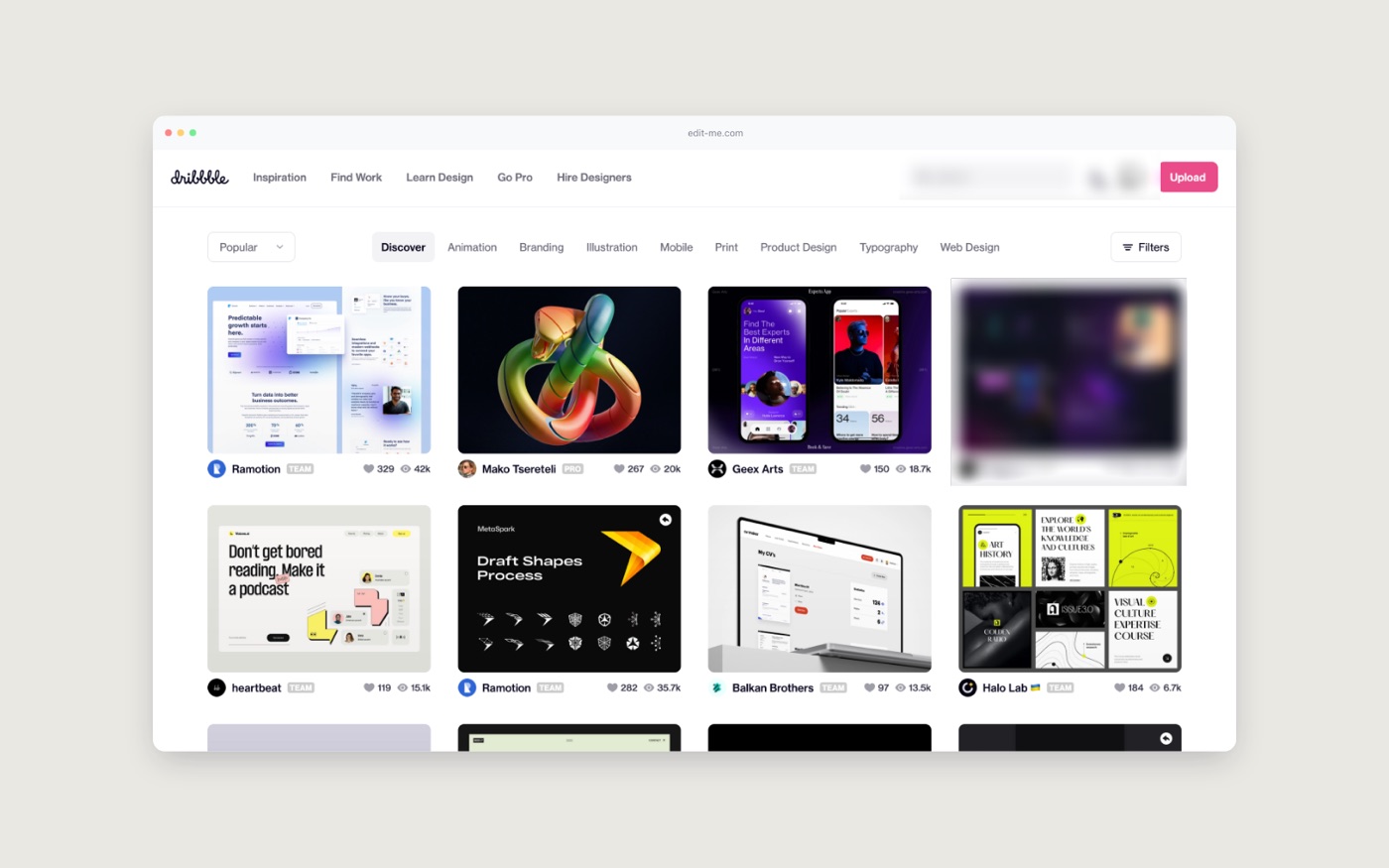
The obvious details are easy to spot. These are the ones people miss:
- Your name, email and avatar in an account menu or corner of the page.
- Other people’s data: customer names, emails and amounts in tables, lists and search results.
- Secrets: API keys, tokens, passwords, recovery codes and one-time codes.
- The address bar. URLs often contain account IDs, email addresses or access tokens.
- Browser tabs and bookmarks, which can reveal clients, projects and internal tools.
- Notifications that arrived while you were capturing.
- Codes that can be scanned: QR codes, barcodes, boarding passes and tickets.
- Anything else on screen, like other windows, your desktop and the dock or taskbar.
Choose the right method
| Method | Can it be undone? | Use it for |
|---|---|---|
| Crop it out | No | Anything near an edge. The safest option. |
| Solid box | No, once flattened into the image | Passwords, keys, account numbers. |
| Replace with fake data | No | Marketing and documentation screenshots. |
| Strong blur or large pixelation | Very unlikely | Names, emails, faces and background details. |
| Light blur or small pixelation | Sometimes | Nothing sensitive. |
Pixelation and blur work by averaging nearby pixels. When the effect is light, the average still carries enough of the original shape to be matched. In 2020 a tool called Depix showed this by recovering passwords from pixelated screenshots, by comparing the blocks with pixelated versions of known text. Heavy blur over a generous area leaves too little to match. A crop or a solid box leaves nothing at all.
Be careful with apps that keep boxes and shapes as separate layers, such as PDF editors and some markup tools. If the box can be moved or deleted, so can yours. Export a flattened image before you share it.
How to blur part of a screenshot
- Open the editor and drop or paste your screenshot.
- Click Markup in the toolbar.
- Choose the Blur tool (or press B) and drag over each area to hide.
- Drag a blurred box to move it, or use its handles to resize it.
- Export. The blur is flattened into the image.
The blur tool pixelates and blurs the pixels underneath, then draws them over a solid base, so nothing shows through. It has one fixed strength, and there is no filled-box tool yet, so for passwords, keys and account numbers crop them out instead with Crop in the toolbar.
Better still: don’t capture it
- Use a demo account with made-up names and data. It makes every future screenshot safe by default.
- Edit the page before capturing. Right-click text, choose Inspect, and double-click the text in the Elements panel to change it. Or run
document.designMode = 'on'in the console and type straight onto the page. Changes disappear when you reload. - Capture only the part you need with a region screenshot (⌘+⇧+4 on a Mac, Win+Shift+S on Windows) rather than the whole screen.
- Use a clean browser profile for screenshots, with no bookmarks bar and no personal extensions.
What about hidden information in the file?
Photos taken on a phone can include location and camera details. Screenshots usually carry less, but can still include the device and the time they were taken. Images exported from Screenshot.Rocks are drawn fresh in the browser, so none of the original file’s metadata is copied into them.
Frequently asked questions
Is blurring safe for passwords?
Not reliably. Crop passwords, keys and account numbers out, cover them with an opaque box, or change them before capturing.
Can pixelated text be read?
Sometimes. Light pixelation of text can be reversed by comparing it with pixelated samples of known text. Use large blocks or heavy blur over a generous area, or remove the text entirely.
Does exporting from Screenshot.Rocks remove metadata?
Yes. The exported image is drawn fresh in the browser, so metadata from the original file is not included.
Are my screenshots uploaded when I blur them?
No. Editing happens in your browser. The screenshot isn’t sent anywhere unless you share the exported file yourself.